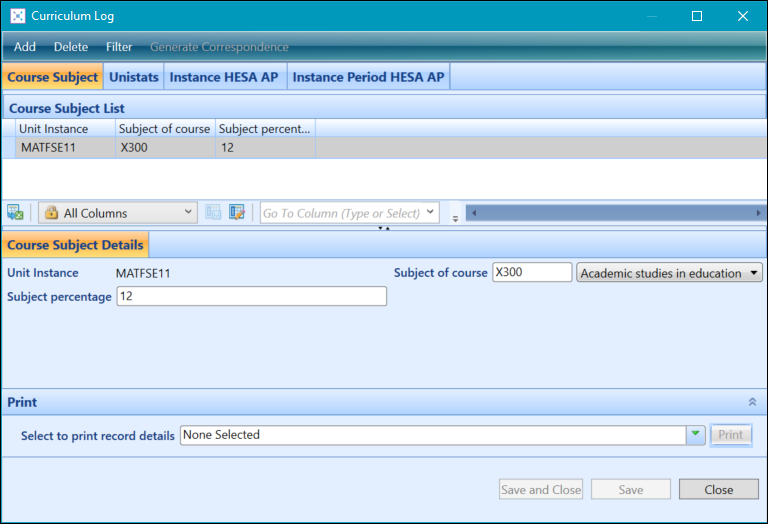
Use the Curriculum Log to enter custom information about the current UI.
Configuration of the Curriculum Log must be done using the screen manager module. Refer to Configure Pages for more information.
On the Curriculum Details screen, select the Curriculum Log button on the Curriculum ribbon.

This will display the Curriculum Log window.
 Add a Curriculum Log record
To create an Curriculum Log record:
-
Select the Curriculum Log button on the Curriculum ribbon in the Curriculum Details module.
-
Select the Add button at the top of the Curriculum Log window.
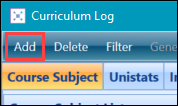 Important.If you don’t have any records for this curriculum’s log, then the button will be greyed out. Instead, enter the learner log details in the fields provided.
 -
Enter the details of the Curriculum Log record in the details section of the window.

-
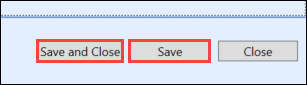
Select the Save button to save the record. Alternatively, select the Save and Close button to save the record and close the Curriculum Log window.
Delete a Curriculum Log record
To delete an Curriculum Log record:
-
Select the Curriculum Log button on the Curriculum ribbon in the Curriculum Details module.
- Select the record you want to delete from the log list grid.
-
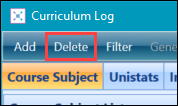
Select the Delete button at the top of the Curriculum Log window.
-
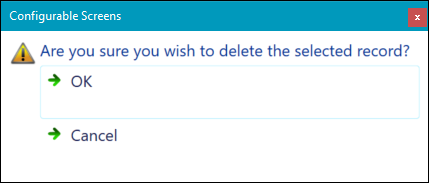
Select the OK button to confirm the deletion of the record on the window that displays.